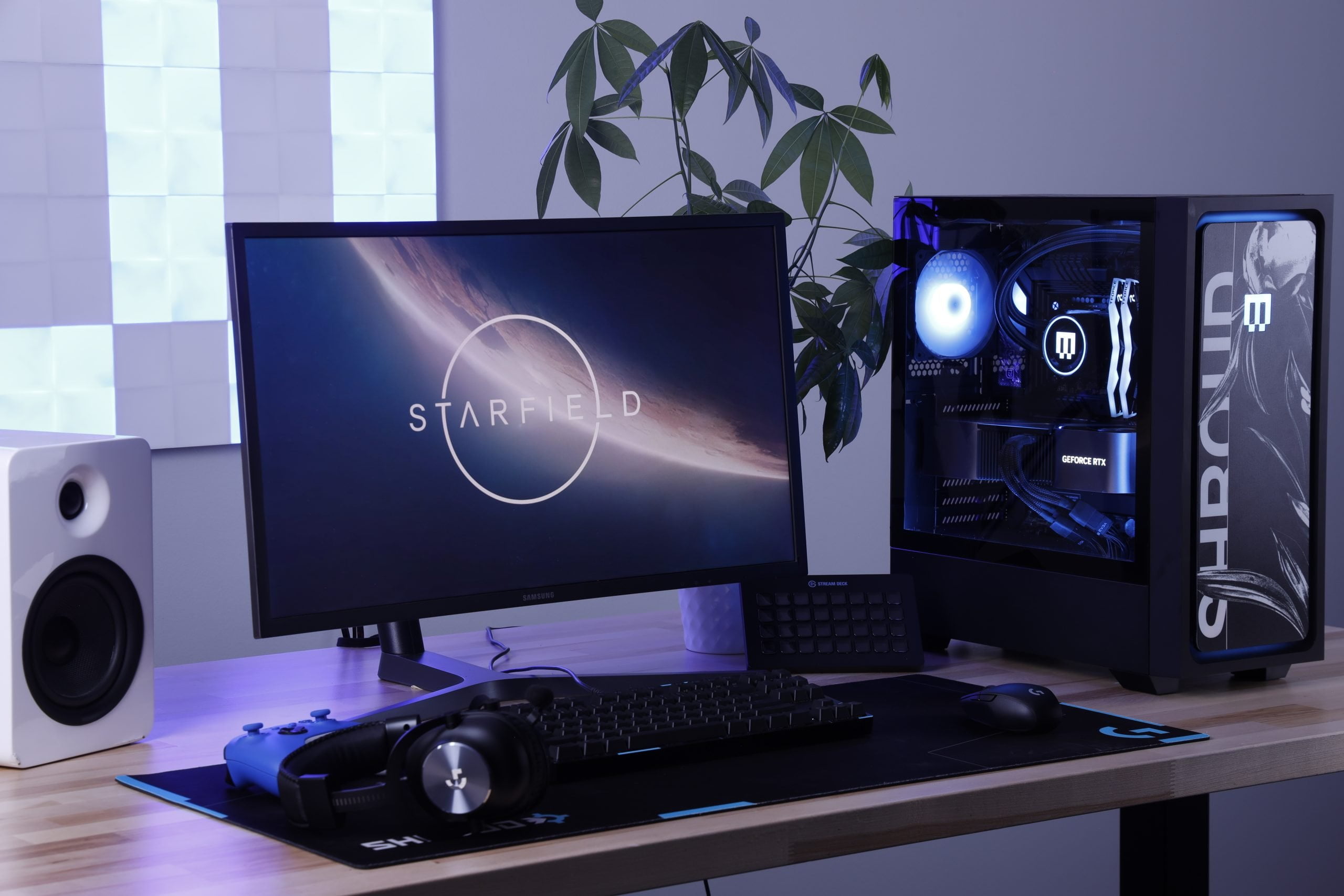
Starfield has been out in the world for a couple of weeks now and it has been named Bethesda’s biggest video game launch of all time. The game is now available for Xbox Series XlS and PC via Steam where the player base has seen a rise since launch.
To ensure you experience the game’s breathtaking beauty at its peak performance, the folks at MAINGEAR have shared some tips to help players optimize their PC and in-game settings for the best performance.
PC Optimization
Keep Your PC Updated: Outdated drivers can lead to game instability and crashes. Prevent these issues by regularly updating Windows and your drivers to the latest versions. You can update Windows through the “Windows Update” menu. For NVIDIA graphics cards, use the “GeForce Experience” app. For AMD processors and graphics cards, utilize the “Adrenaline” software. If you have Intel processors and graphics cards, go for the “Intel ARC Control” software or the “Intel Driver and Support Assistant.”
Choose a Swift Storage Drive: Given the massive size of modern games, especially titles like Starfield, they demand significant storage capacity. Optimal performance comes from a larger capacity and faster read/write speeds, so we recommend using a fast NVMe solid-state drive (SSD) for the best experience. .
Minimize Background Tasks: Running multiple background tasks like old browser tabs, email clients, and other programs can hinder in-game performance. To maximize system resources for gaming, eliminate unnecessary tasks or limit them to essential applications like Discord.
Game Optimization
Leverage Upscaling: To enhance performance on older hardware or higher resolutions, consider lowering your Render Resolution setting to 65-75% and enabling FSR 2 upscaling with a sharpness level of 80-90%. This will significantly boost framerates without compromising visual quality.
Adjust Lighting and Shadow Settings: Starfield offers an array of resource-intensive lighting and shadow settings. Reduce settings like Shadow Quality and Volumetric Lighting for a substantial performance improvement with hardly any noticeable impact on visual quality.
Disable Dynamic Resolution: For a consistently top-tier visual experience, disable dynamic resolution. While this may cause a slight framerate dip in specific situations, it ensures a visually immersive journey as you explore the galaxy during those lengthy gaming sessions.